Choose a Background Display
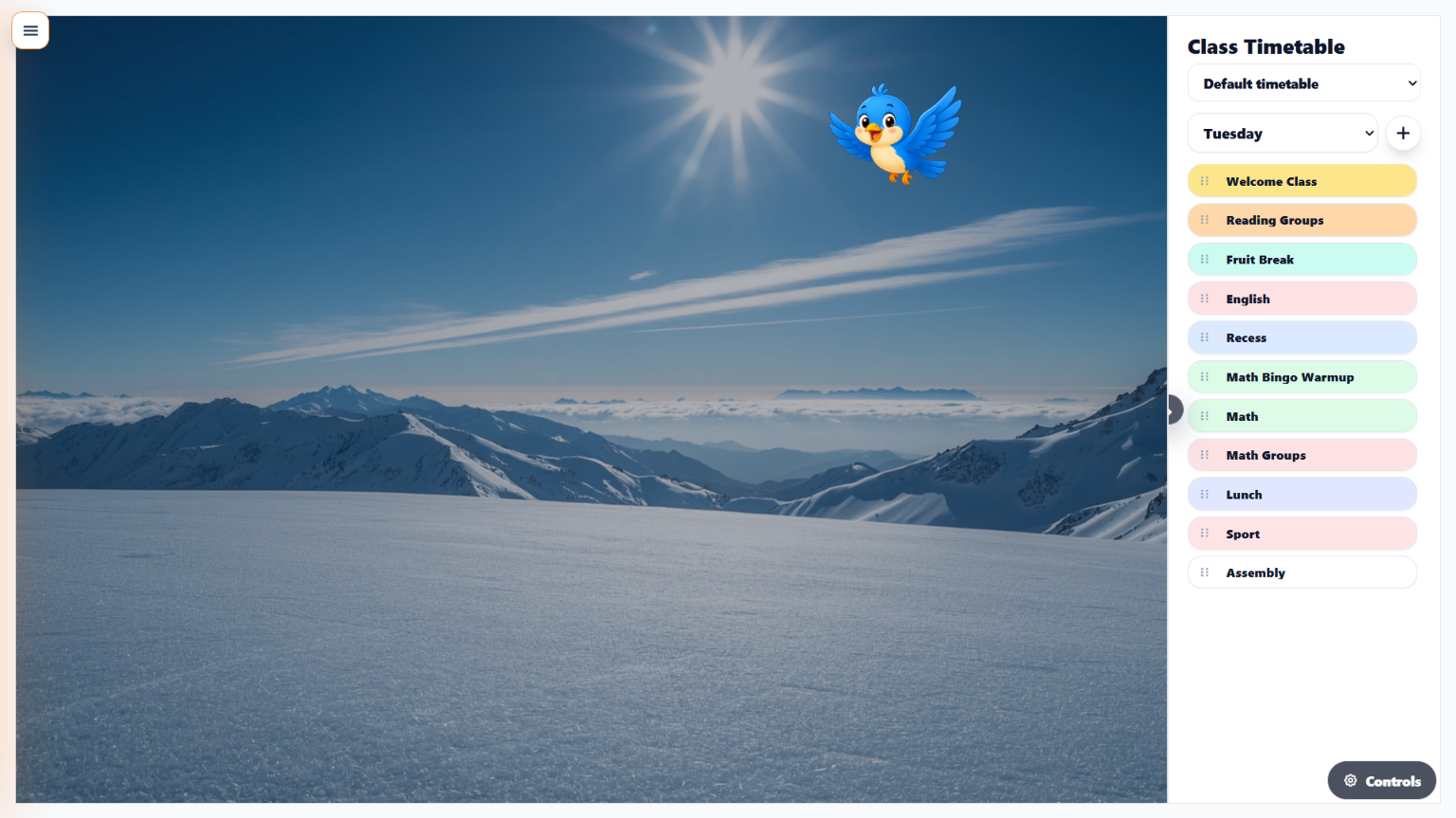
Choose a named background for the routine or subject you are teaching.
TGM Classroom Display Hub
Choose a classroom background, build your Class Timetable, prepare every lesson and launch the resources you need without leaving your display.
Start free with up to three reusable Background Displays and one default Class Timetable.
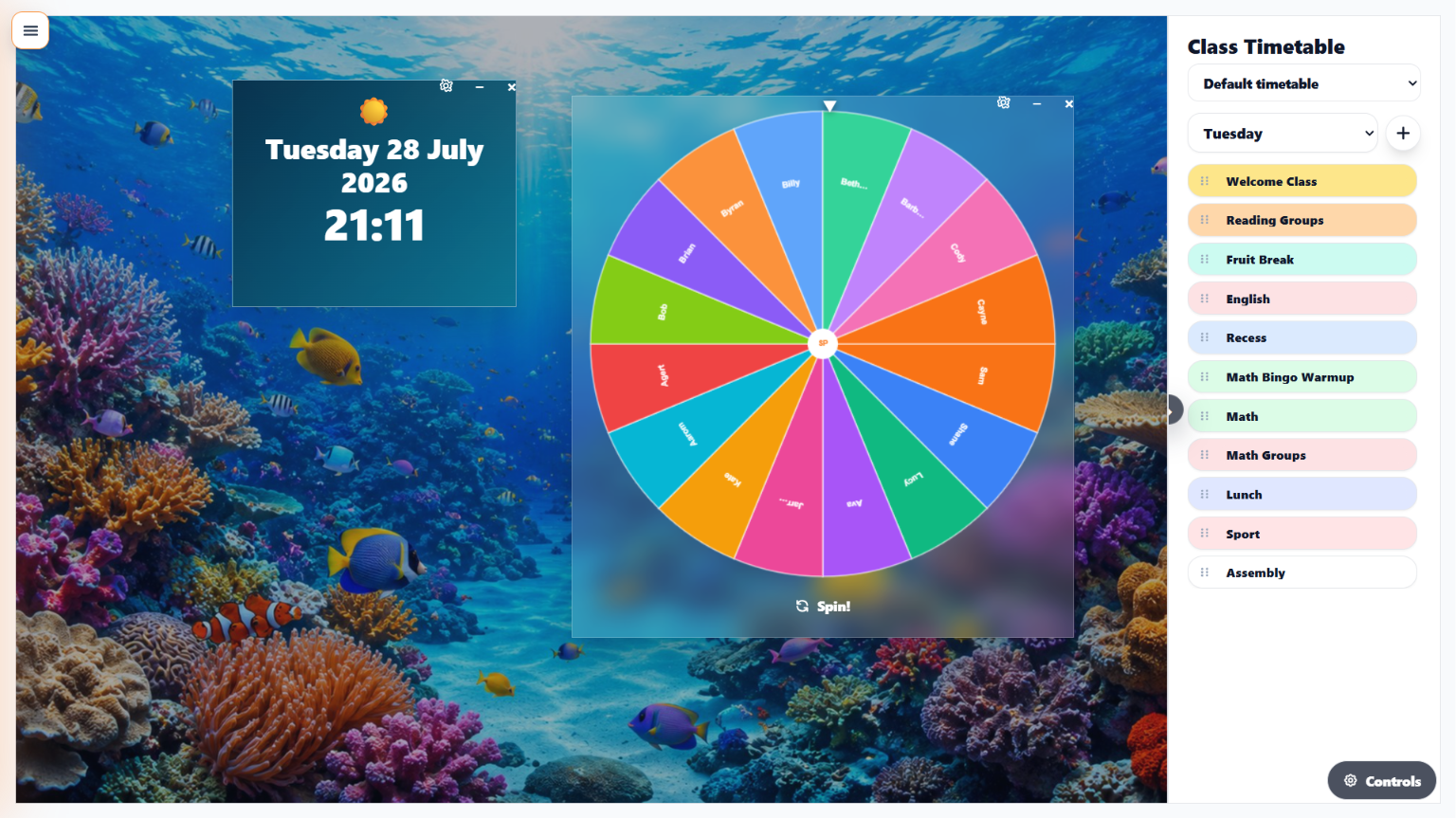
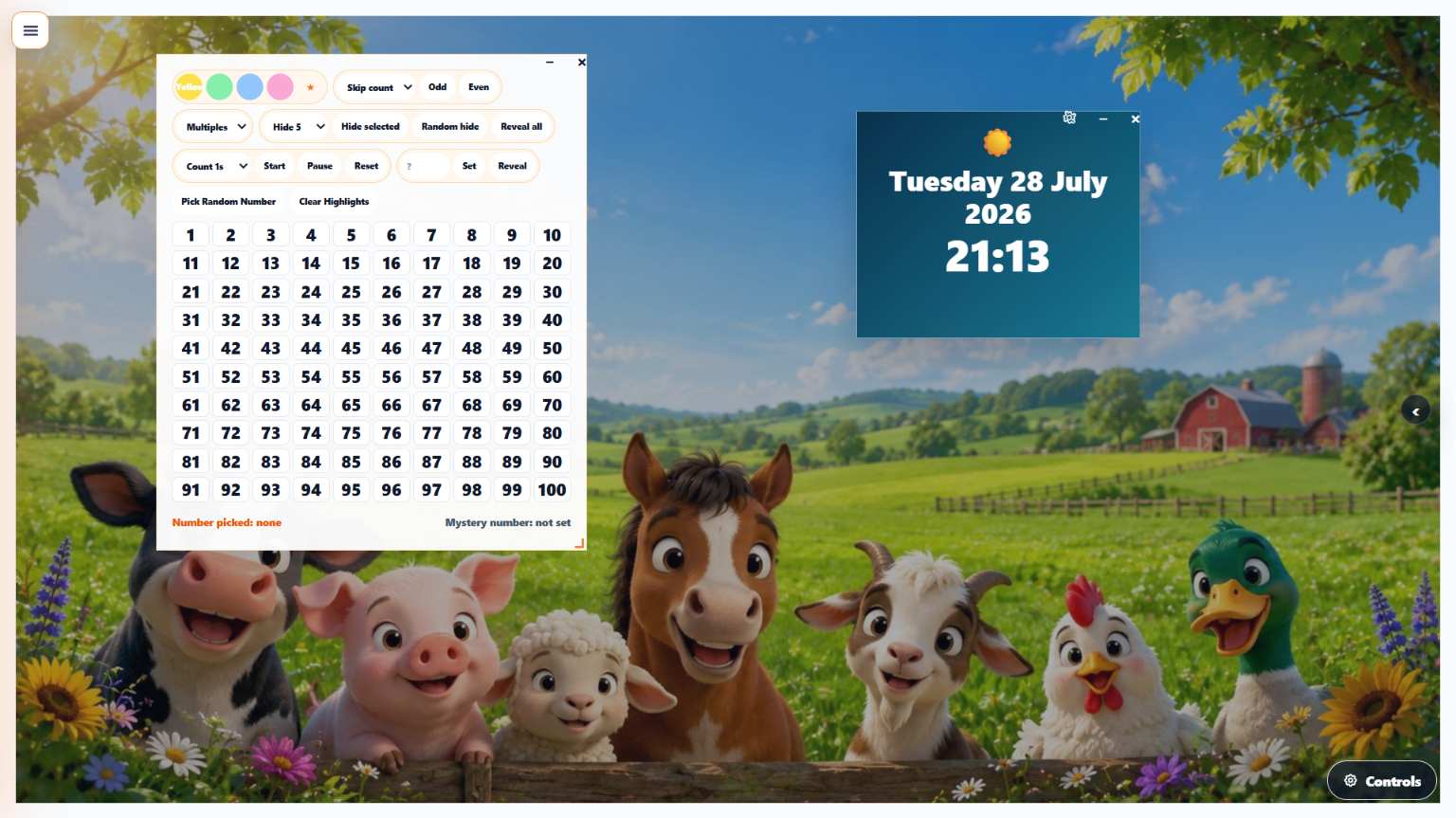
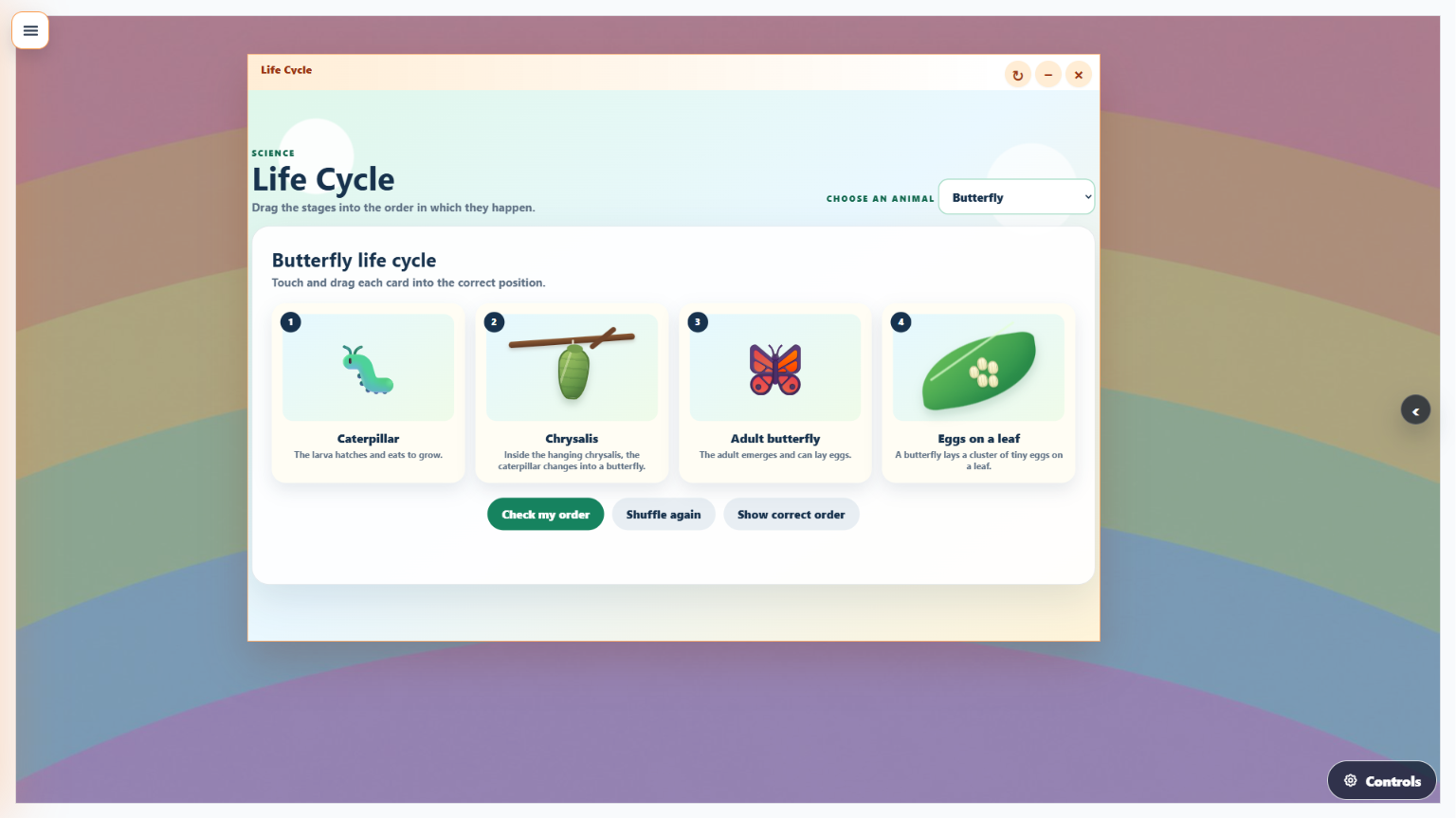
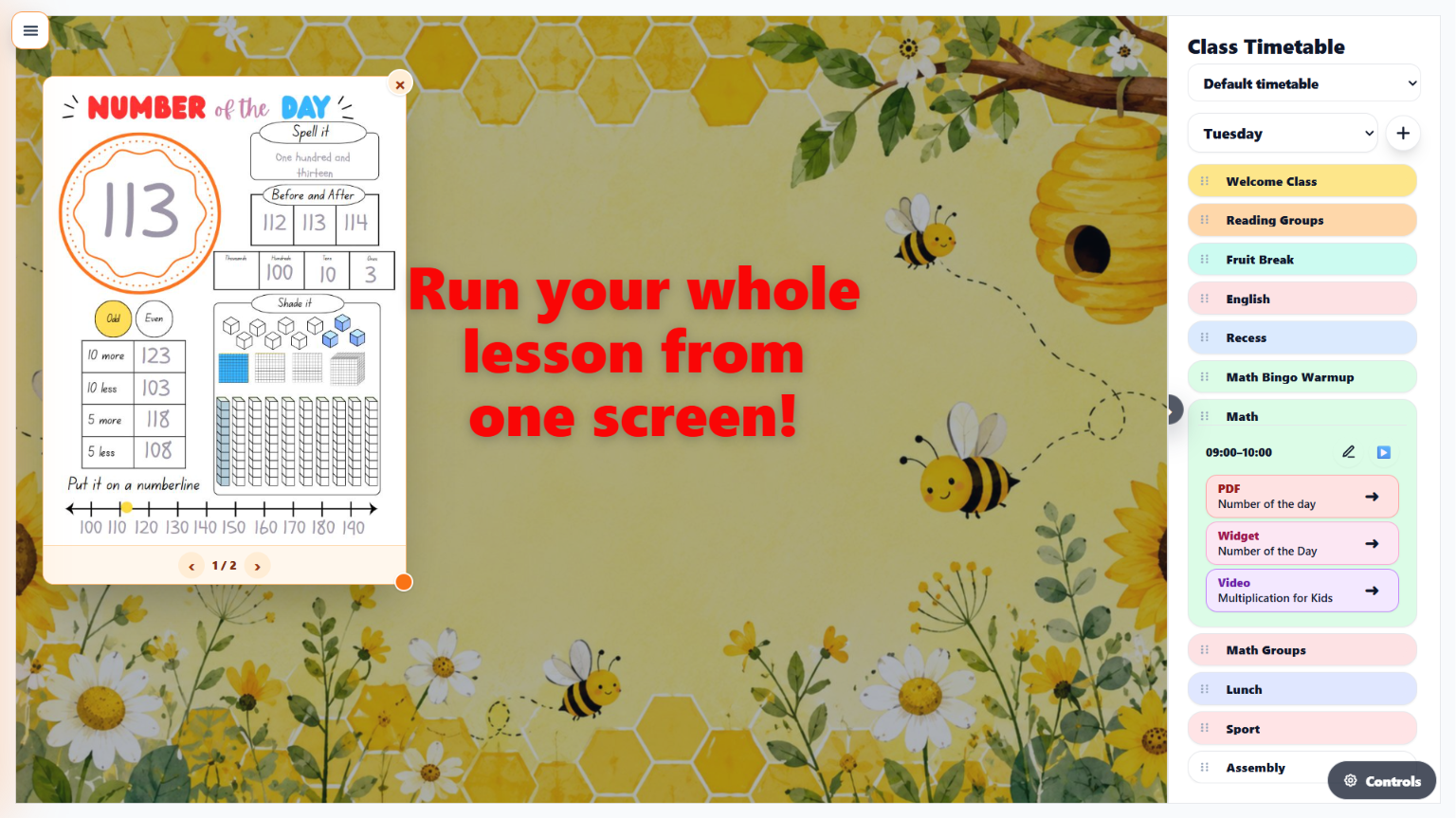
One connected teaching workflow
Choose a named background for the routine or subject you are teaching.
Add lessons, regular weekdays and special days in the order you teach them.
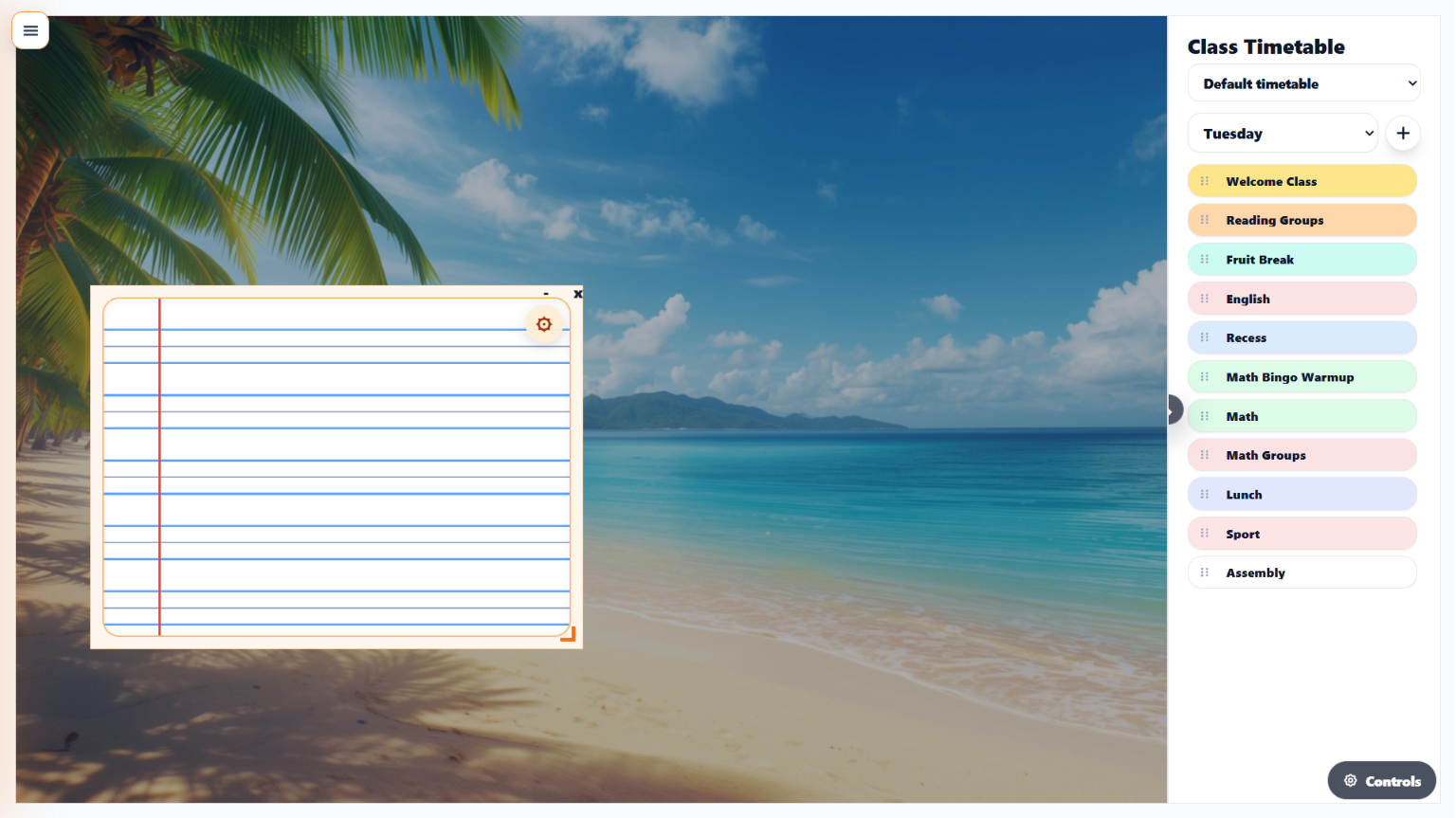
Add widgets, documents, images, links, videos, QR codes and slide decks.
Open each resource from the timetable and keep the lesson moving.
Displays and backgrounds
Create named Background Displays for English, Math, Reading Groups, Art and other subjects. Each one keeps its own background, widgets, text, images and classroom layout together.
Class Timetable
Organise Monday to Friday, add special days such as Athletics Carnival or NAPLAN, reorder lessons by dragging them and open any lesson directly from the timetable beside your classroom screen.
Class Timetable
English
9:00–10:00 · 5 lesson items
Reading Groups
10:00–10:45 · Widget and PDF
Math
11:30–12:30 · Slides and QR code
Science
1:30–2:30 · Video and images
Lesson Editor
Resources remain attached to the lesson, ready to launch from the Class Timetable in the order you intend to teach.
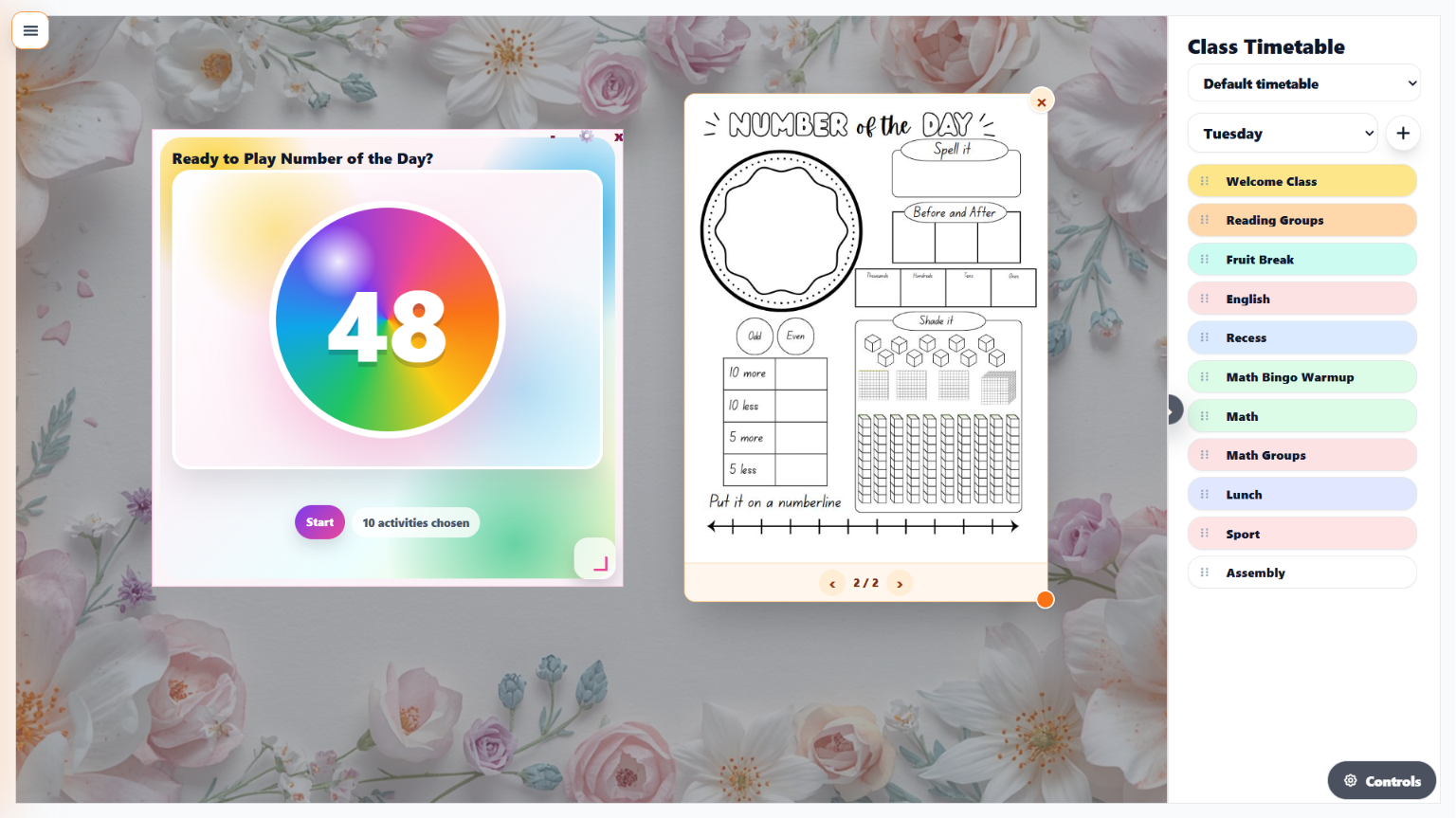
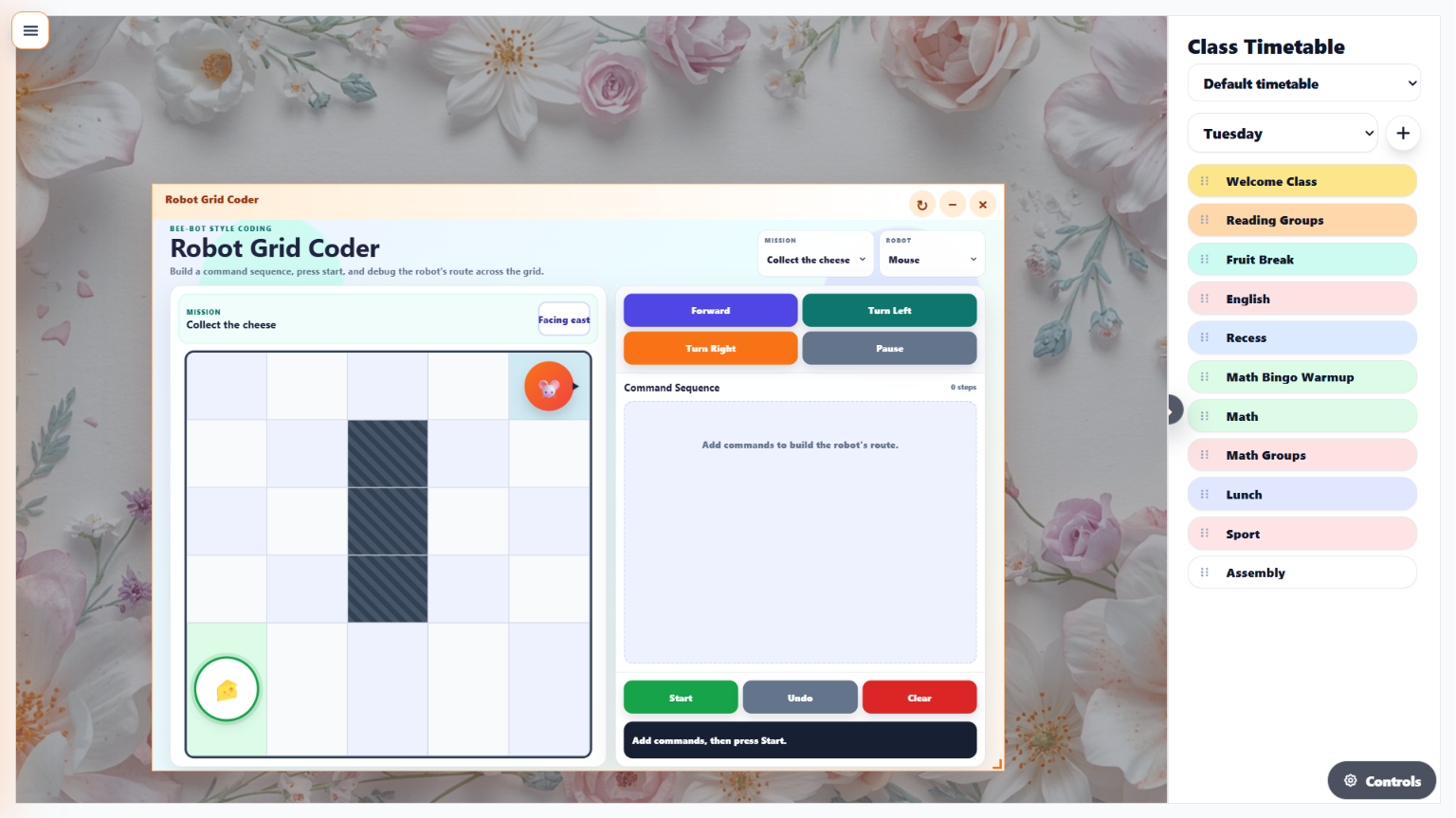
Built for the classroom screen
PDF pages and images open as lightweight visual cards that can be moved and resized. Widgets launch as interactive classroom tools, while websites, videos and slide decks can open in a separate tab when that works better.
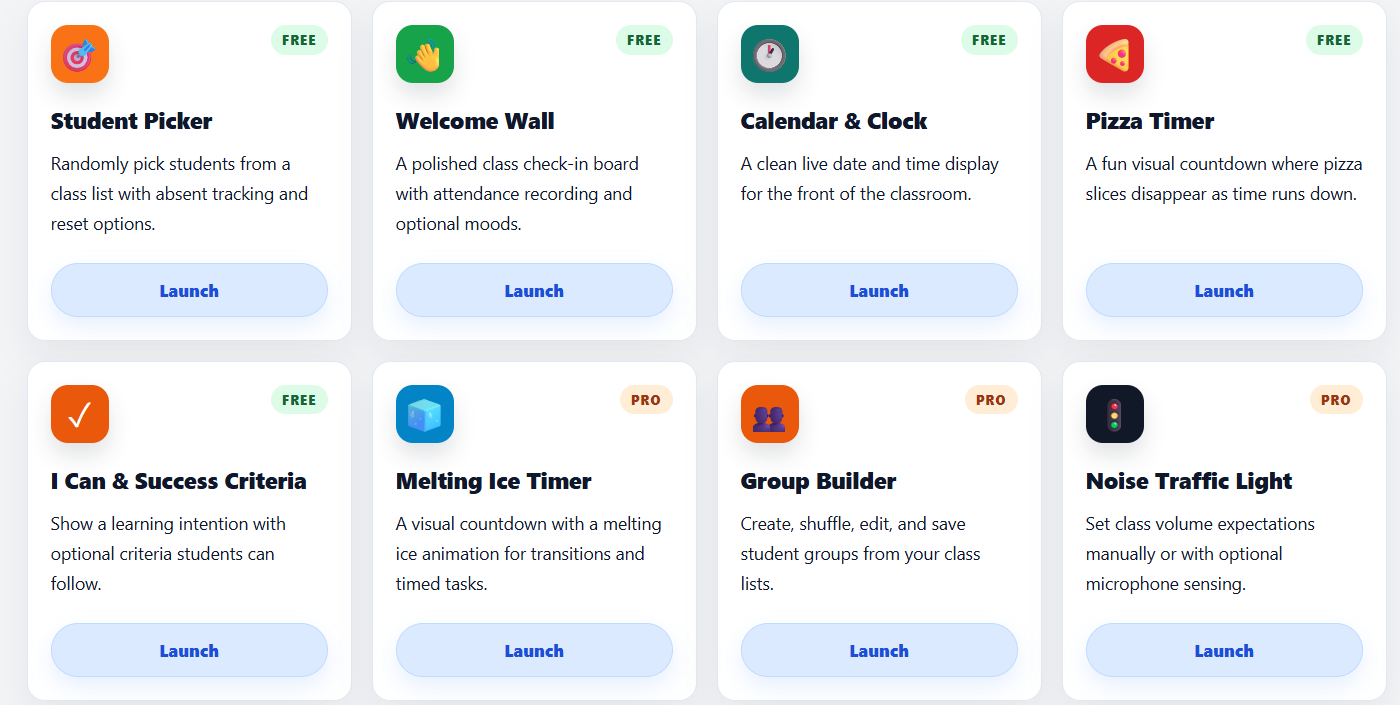
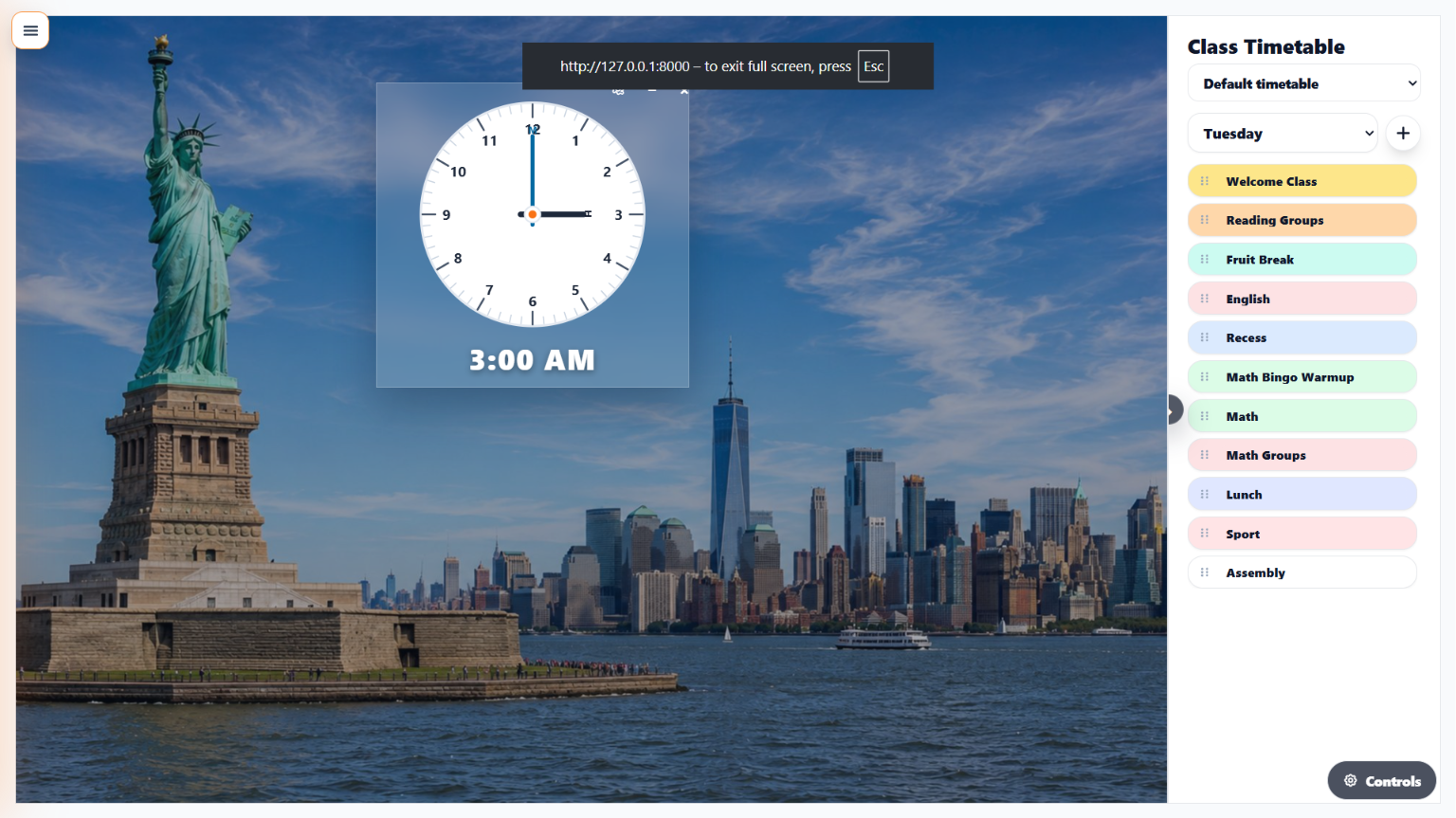
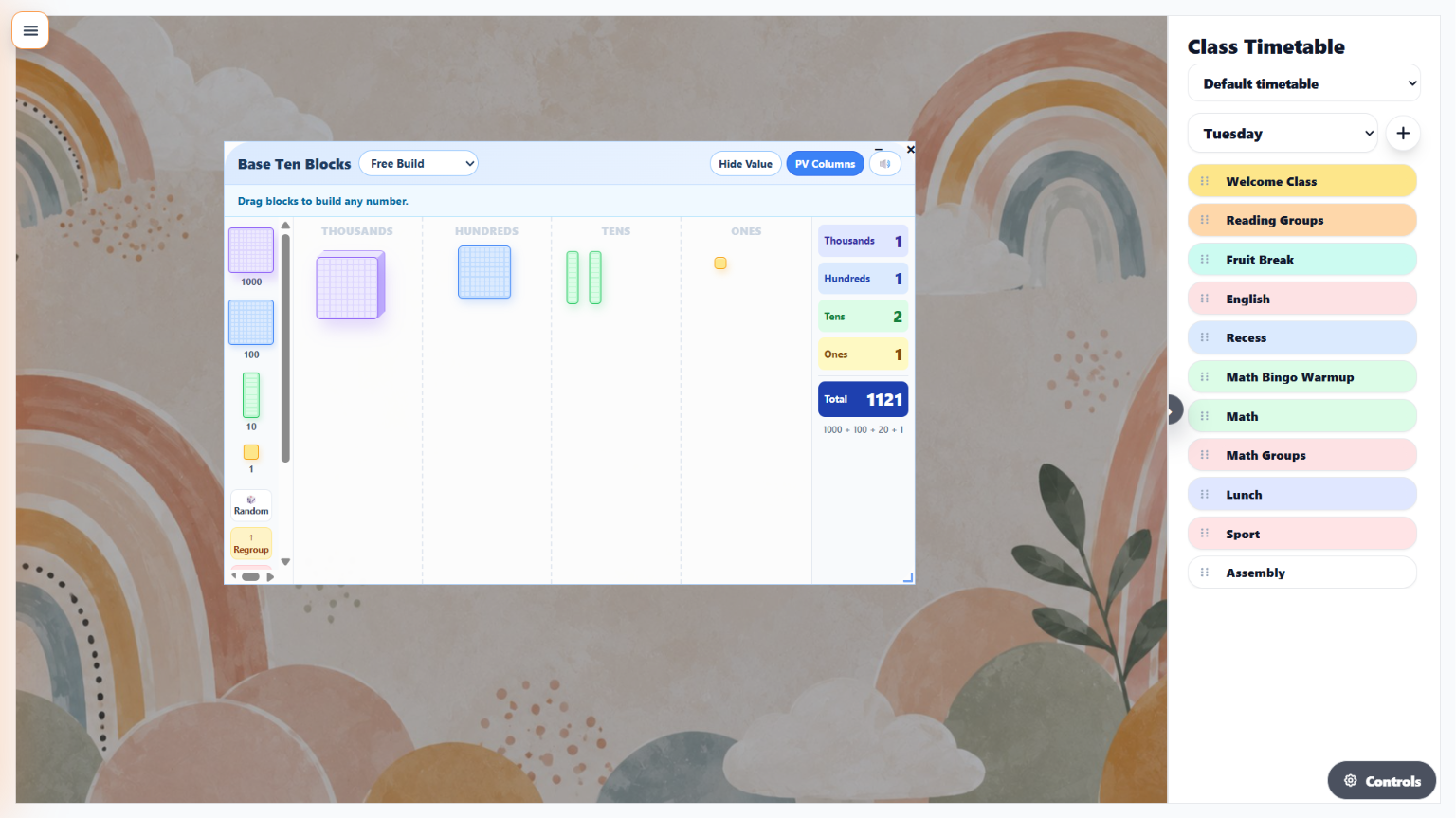
Number of the Day, Fraction of the Day, timers, student tools, curriculum widgets, routines, rewards and more.
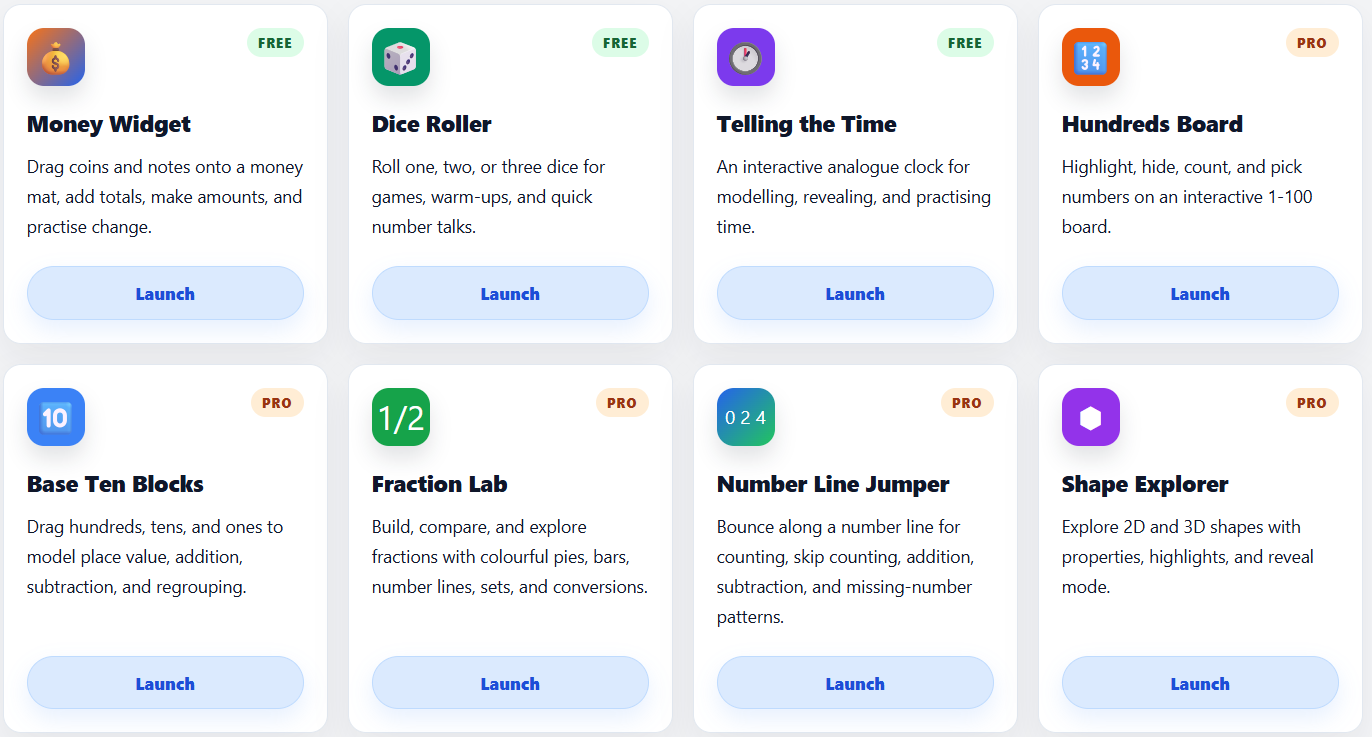
Open only what you need, then move it out of the way or close it.
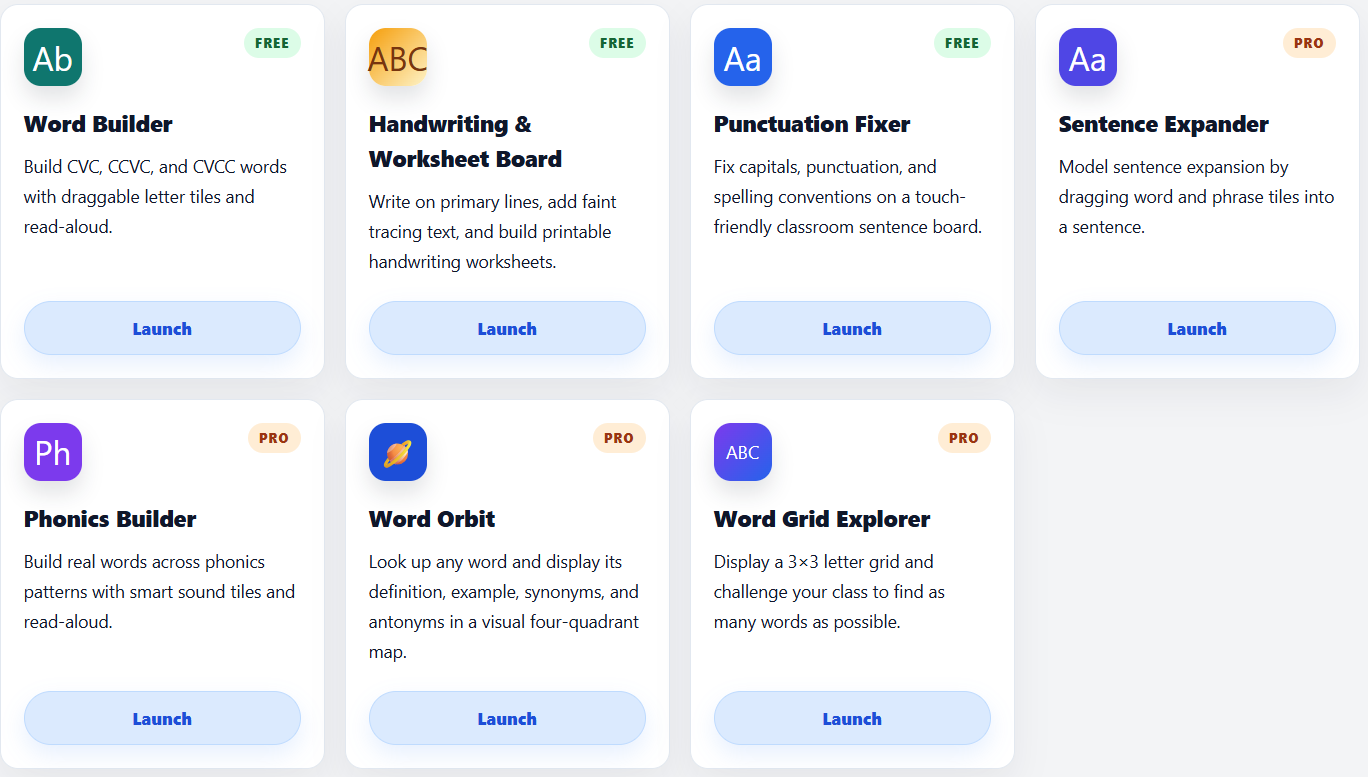
Combine backgrounds, timetable lessons and live classroom tools.
Free
TGM Pro
Create your display, add your timetable and prepare the resources for your first lesson.